How to perform a Backup of a Certero On-Premises platform


This article is to assist On-Premises Certero customers with taking a backup of their Certero platform which can be stored for archiving or provided to Certero as part of support troubleshooting.
SaaS Hosted customer backups are managed by Certero.
1. RDP to your Provisioning Services server.
2. In a new browser tab, navigate to https://localhost:9000
3. Click the "Email" field.

4. Type "admin@cps.local"
5. Click the "Password" field and type your password.

6. Click "Sign In"

7. Click "Tenants"

8. Click the three blue dots to the left of your Tenant.

9. Click "Backup"

10. Click the "Description" field.

11. Type a name for your backup file: i.e. "New Backup for Support Ticket"
12. Click "Submit"

13. The backup process will start, when complete, a tick is presented next to your Backup Name.
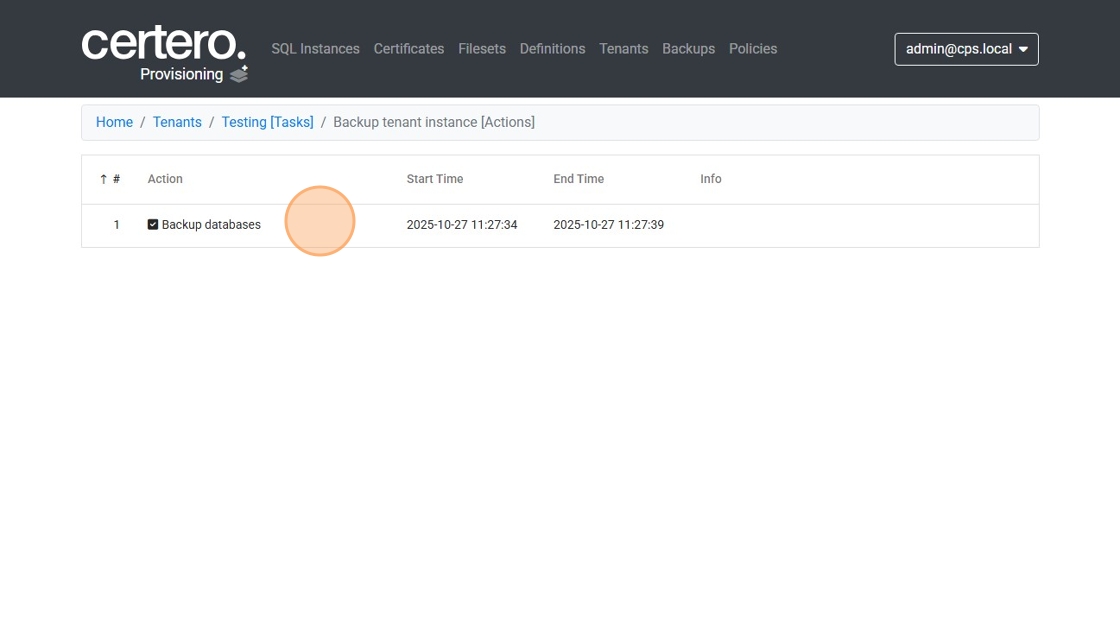
14. Click "Backups"
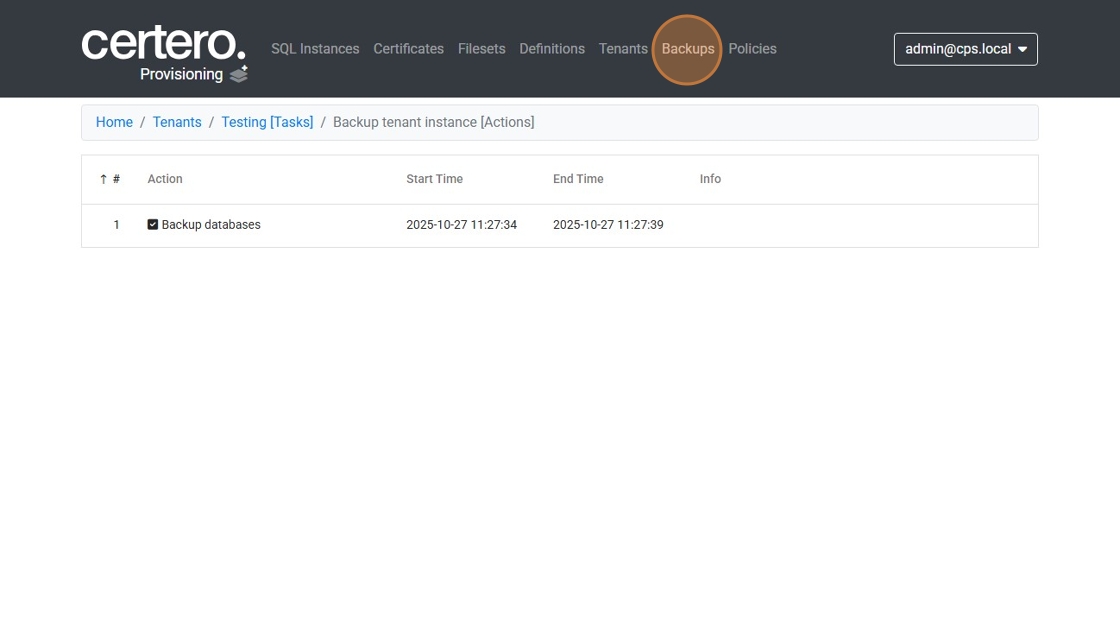
15. Click this link to download the backup.

16. In a new tab, navigate to https://cc.certero.com/MyFiles
17. Click "Add files..."

18. Click "Upload"

19. Wait for the upload process to complete.
