How to add a Embedded Resource to a Dashboard


Embedded Resources within Certero are a very handy tool for the users as they allow for important internal and external websites, as well as videos to be published within the dashboard.
When adding an Embedded Resource , you will require the URL of the site you wish to use. Please note, URLs for all types of Embedded Resource must be prefixed with either 'http://' or 'https://'. If it seems that a resource has failed to load then it is likely that the site you are trying to embed does not allow for this.
An Embedded Resource can be added to any part of your dashboard and there are no restrictions on the size of column to which you wish to add it.
There are two types of Embedded Resources available to Certero customers:
Website Embedded Resource (Steps 4-10)
Video Embedded Resource (Steps 11-19)
1. Navigate to your Certero dashboard
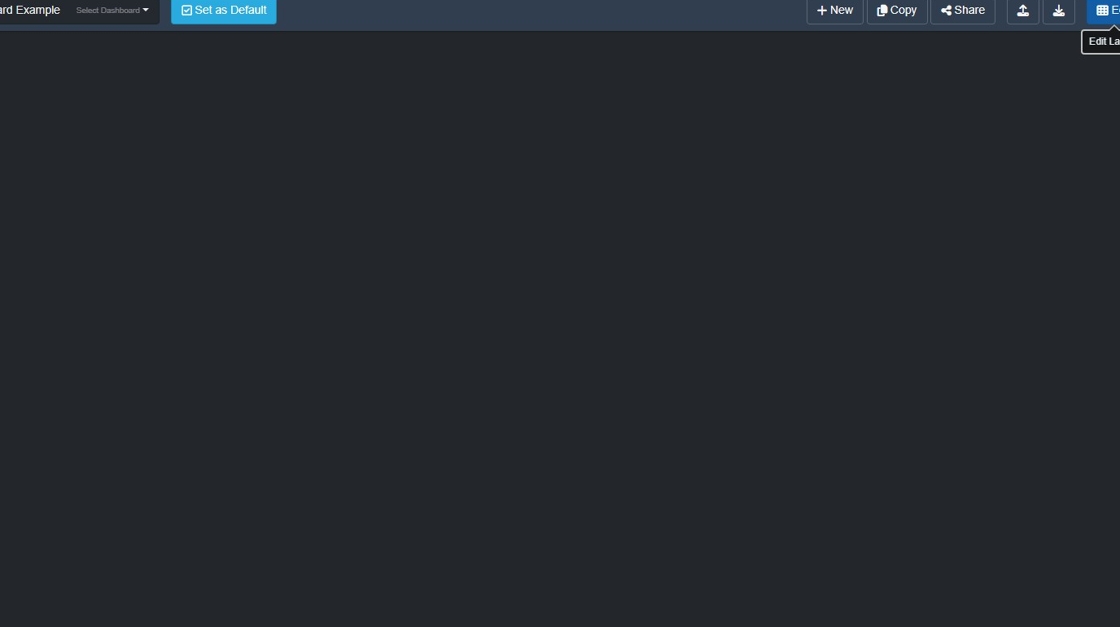
2. Click "Edit"

3. Click + to add a new section.

4. Click "Embedded Resource"
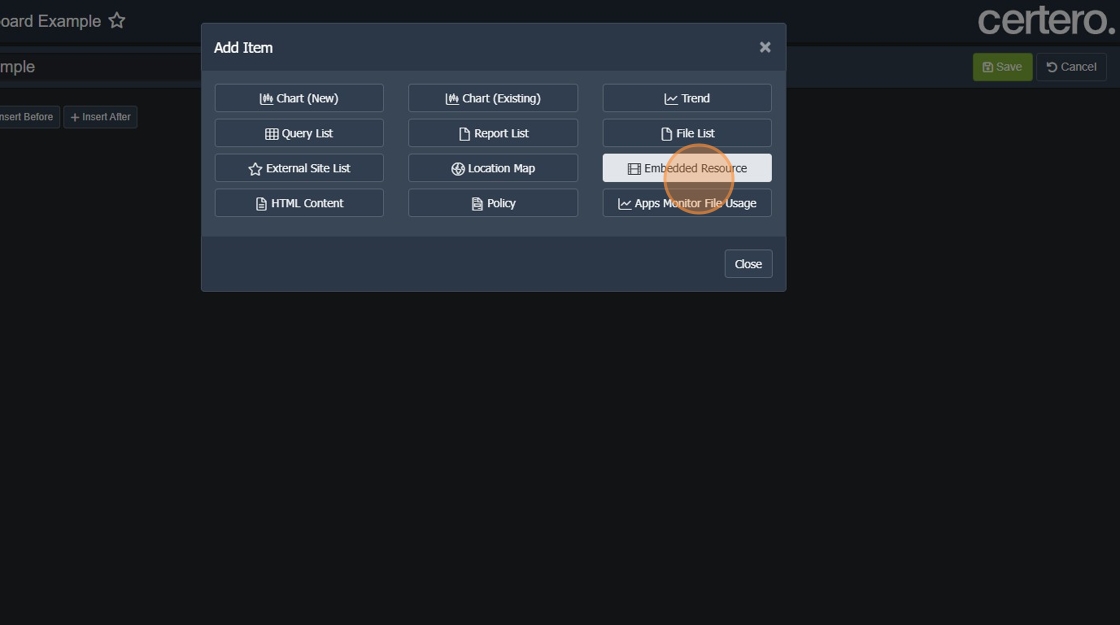
5. Click the "Name" field. Type in your desired name.
6. Leave "Type" as "Website"
7. Click the "URL" field.

8. Click the "URL" field. Type in your URL including HTTP:// or HTTPS://

9. Click "OK"

10. Your desired website will be displayed.

11. Next, we'll add a "Video" Embedded Resource.
12. Click + to add a new section.

13. Click "Embedded Resource"

14. Click "Name", type in your desired name.
15. Click "Type" and select "Video"

16. Click the "URL" field. Type in the full URL including HTTP:// or HTTPS://.

17. Click "OK"

18. Your video will be presented on screen.
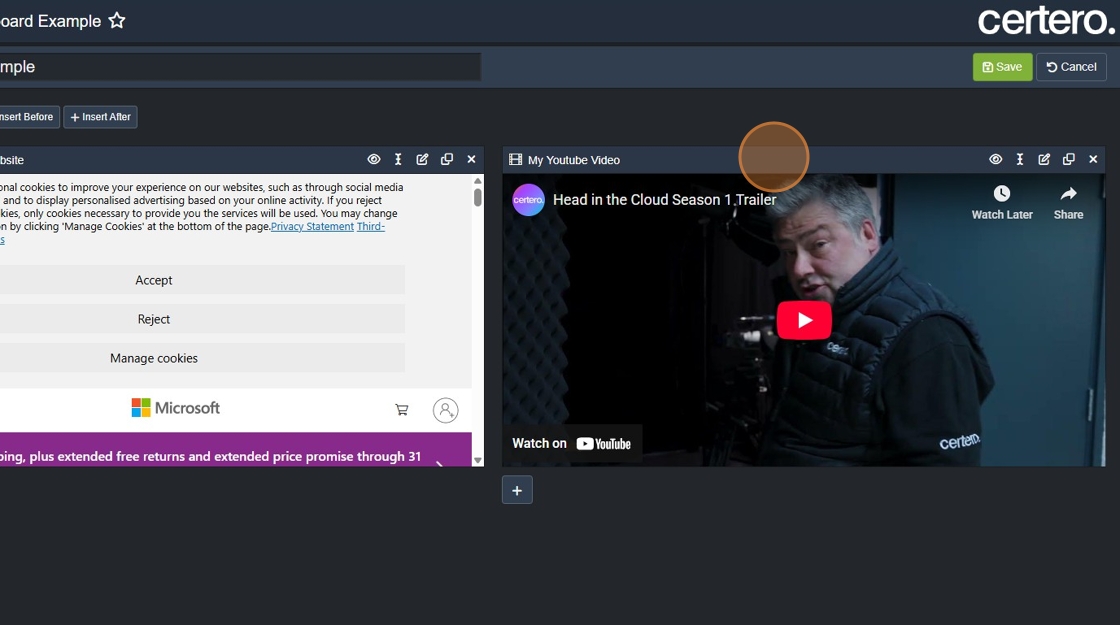
19. Click "Save" to commit your changes.
