How to create a Dynamic Group | v8+


Unlock the power of your Certero inventory data with dynamic groups, a flexible tool that updates daily to spotlight key insights across your organization, saving you time on manual analysis.
Use the example below to create a Dynamic Group in Certero to search, in this case, for active inventoried Windows Workstations where the last logged on user is disabled in Active Directory.
The Dynamic Group makes use of a simple feature to only return those computers that do not meet the specified criteria.
1. Navigate to your Certero platform.
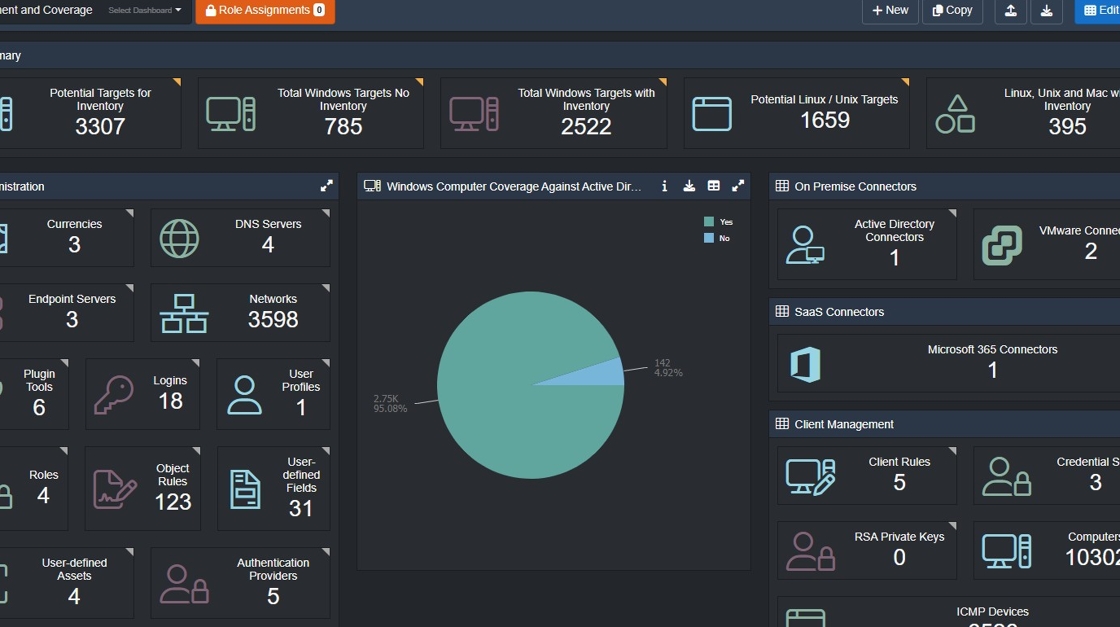
2. Click the burger icon.

3. Click "Data Groups".

4. Click "Dynamic Groups".

5. Click "+ New".

6. Click the "Name" field.
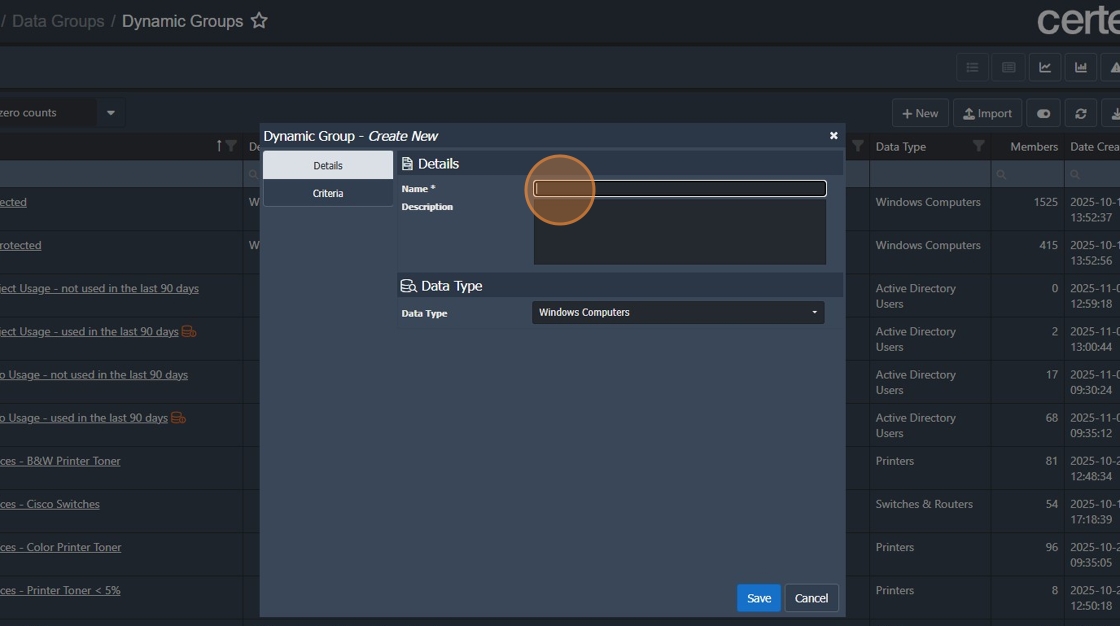
7. Type "Windows Computers Last Logged on User = Disabled".

8. Click the "Description".

9. Type in a detailed description such as "Windows Computers where the last logged on user has been disabled. This can be used to help recover assets when staff leave the organisation.”

10. Click "Data Type" and select "Windows Computers".

11. Click "Criteria".

12. Click "Table"

13. Type "operating"
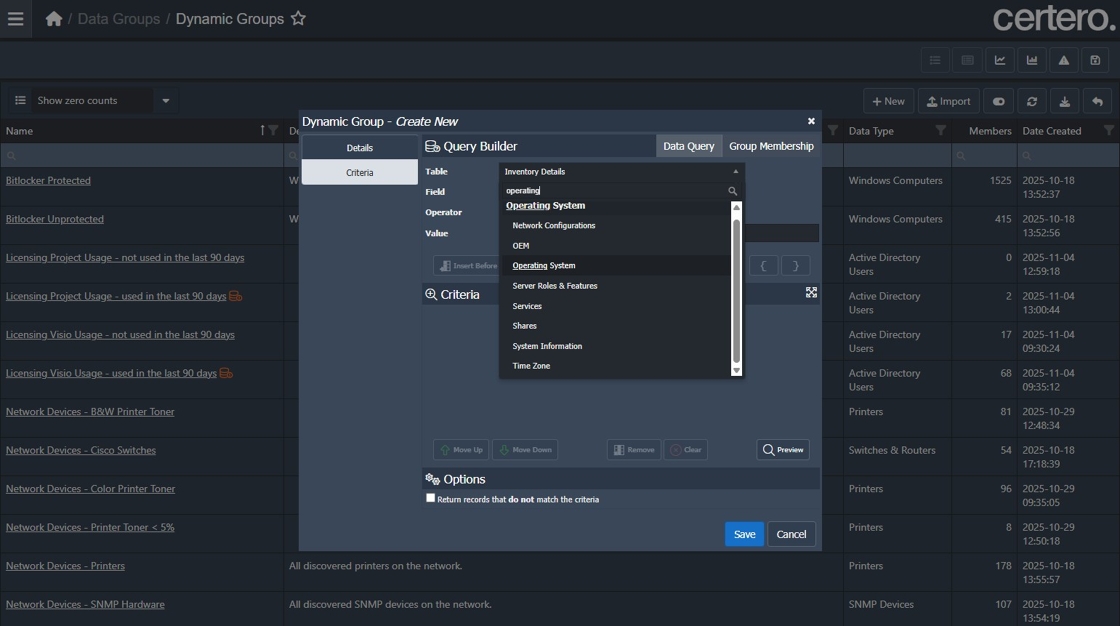
14. Select "Operating System > Operating System"

15. Select Operator "Does not contain".

16. Click "Value".

17. Type "server".

18. Click "Add to End".
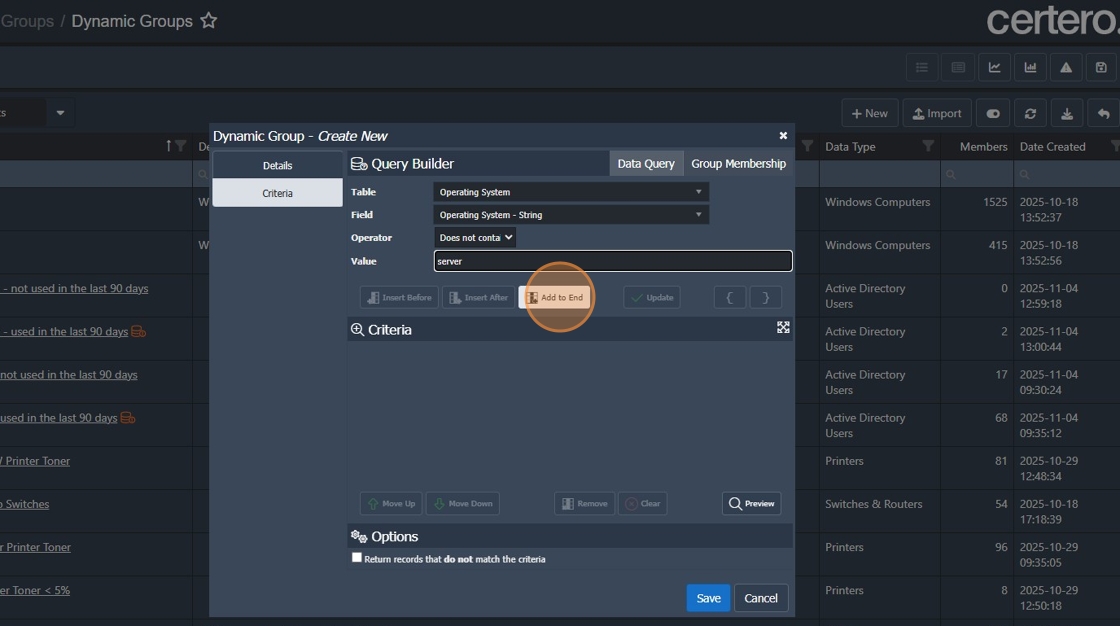
19. Click "Table".

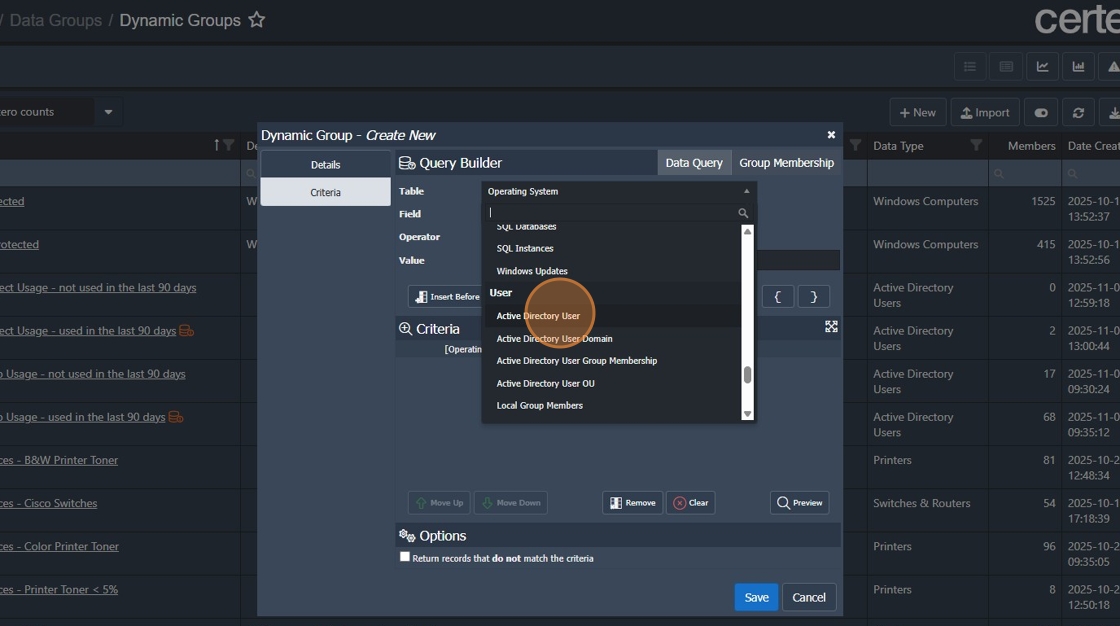
20. Select "User > Active Directory User".
21. Click "Field".

22. Select "Disabled".

23. Click "Value".

24. Select "True".

25. Click "Add to End".

26. Click "Preview".
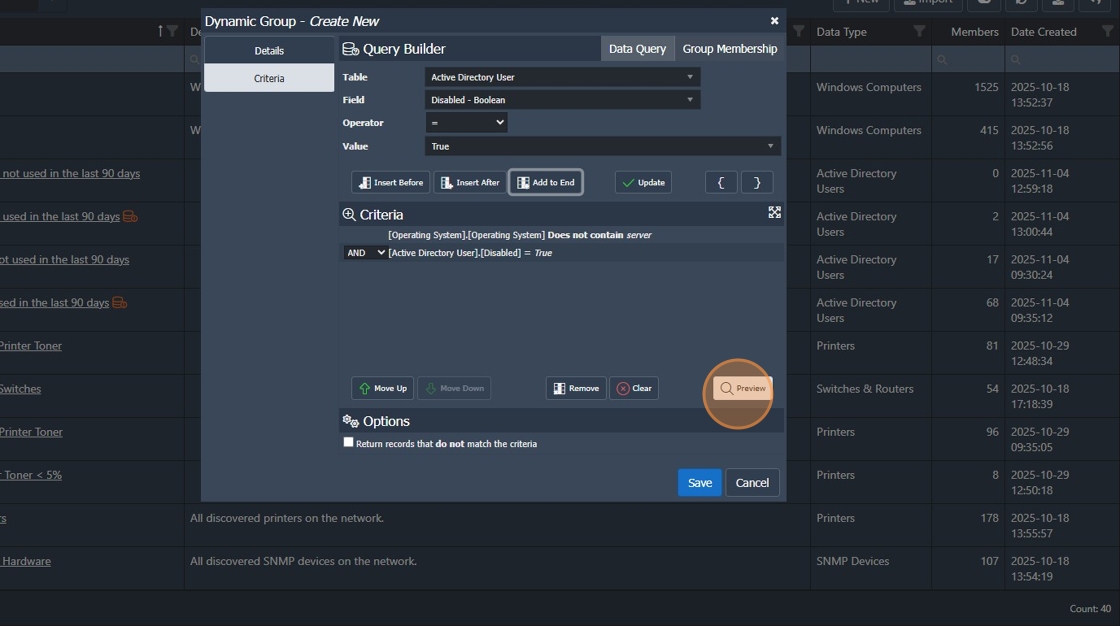
27. Review your preview to ensure results appear correct.

28. Click "Close"

29. Click "Save" to create your dynamic group.
