How to import items to a Static Group | v8+


A new feature introduced from release 6.2 is the ability to paste up to 250 items into a Static Group.
1. Navigate to your Certero platform
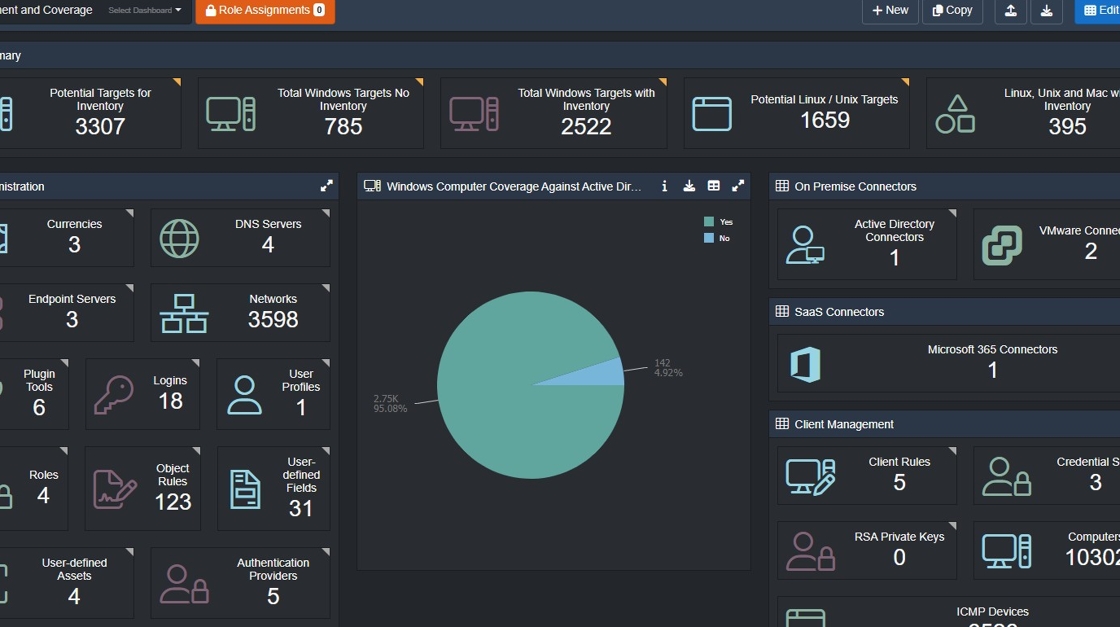
2. Click the burger icon.

3. Click "Data Groups"
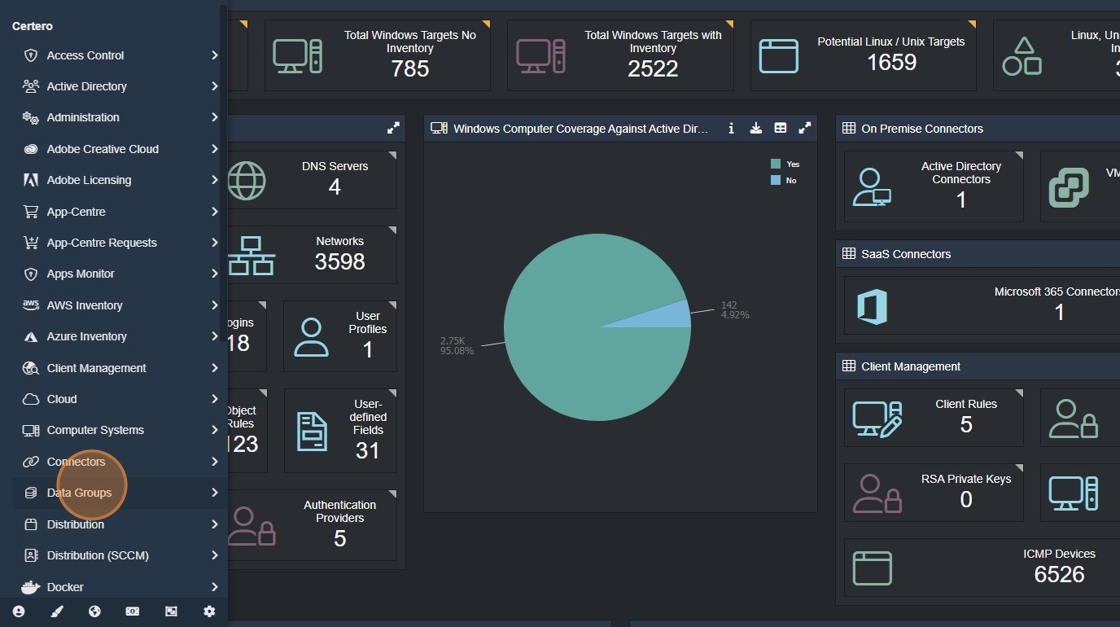
4. Click "Static Groups"

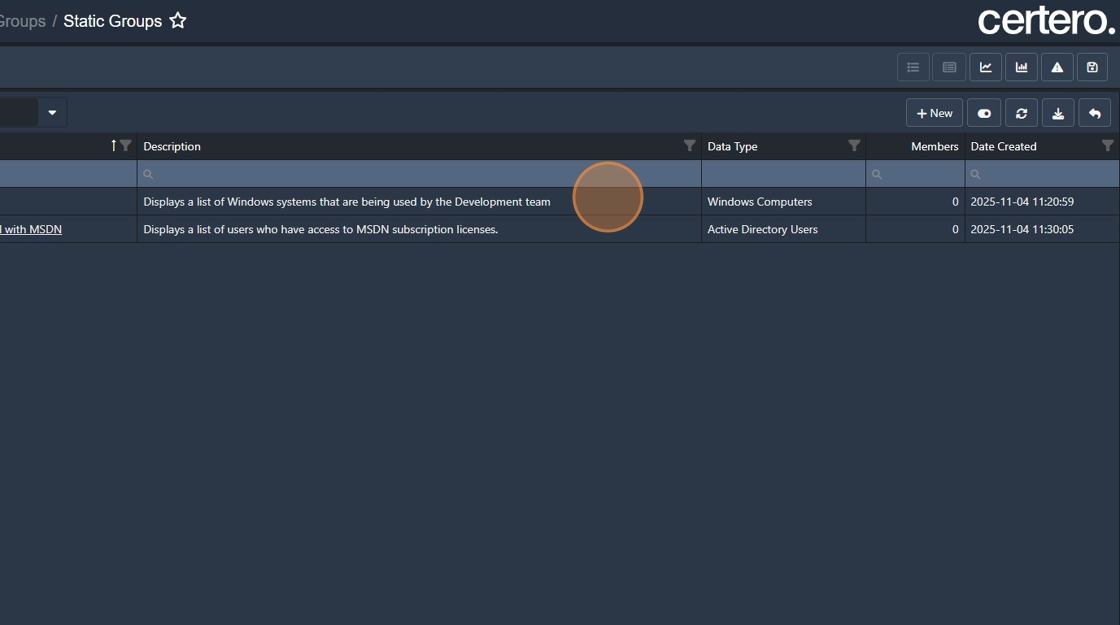
5. In the example below, there are two different data types we will use:
Windows Computers
Active Directory Users
Each data type has its own set of "Fields" that can be used to quickly import your data.
Adding systems to Windows Computers
6. Right-click your chosen Static Group, select "Actions"

7. Click "Actions"

8. Click "Import to Group"

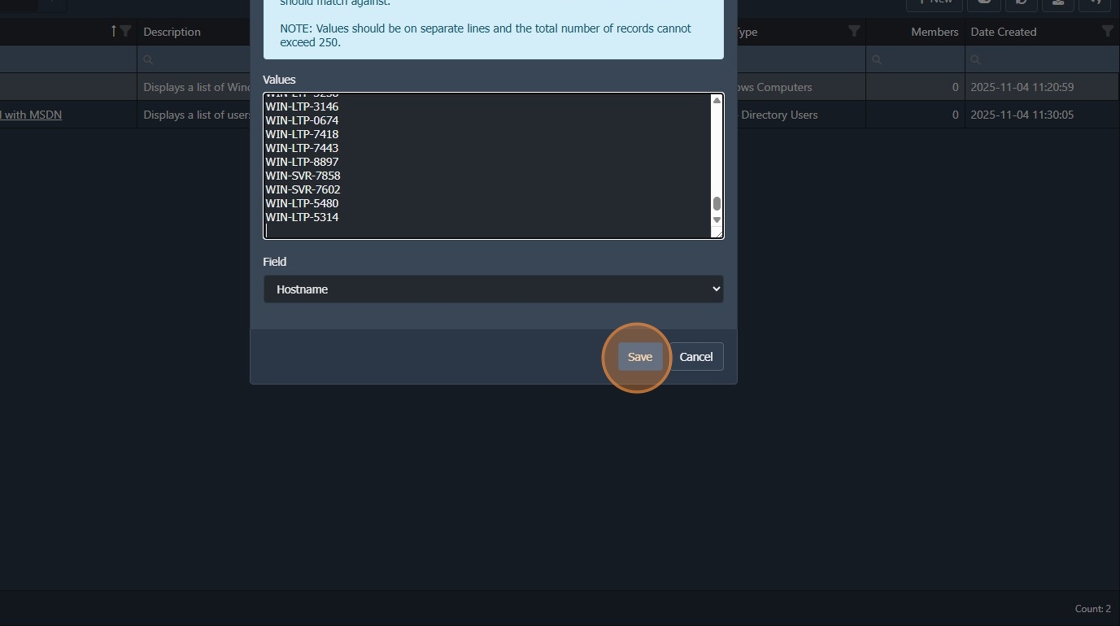
9. Click the "Values" field.

11. Paste in your values that line up with the selected "Field".

12. Click "Save" to commit your change.
13. Your Static Group’s member count will update to reflect the added items.

Adding systems to Active Directory Users
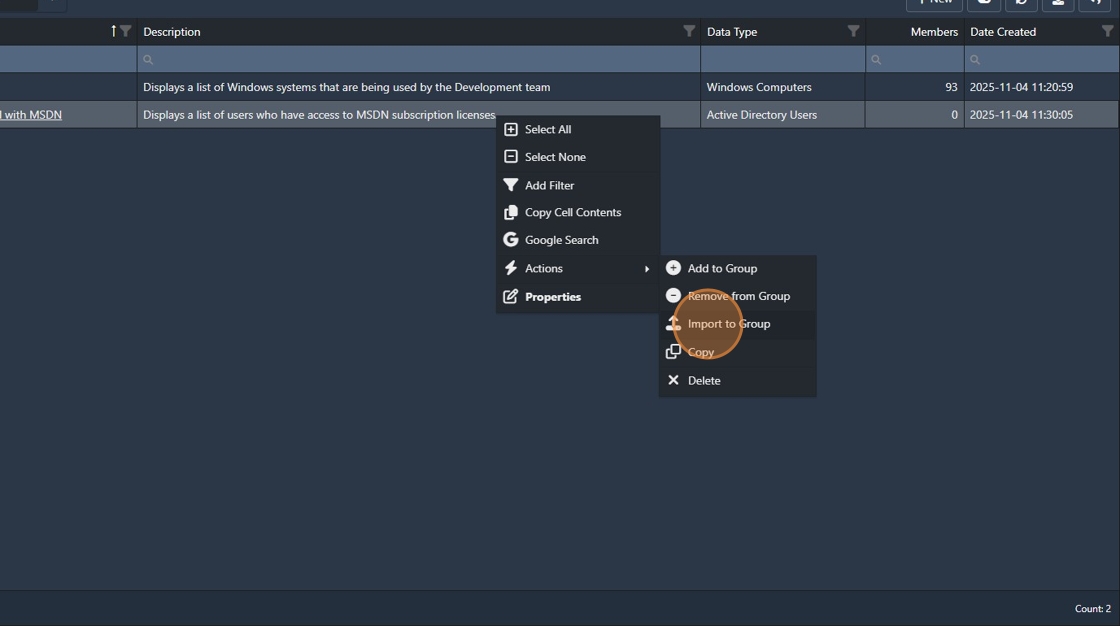
14. Right-click your chosen Static Group, select "Actions"

18. Click "Actions"

19. Click "Import to Group"
20. Click "Field" and select the value type.

23. Paste in your values that line up with the selected "Field".

24. Click "Save"

25. Your Static Group’s member count will update to reflect the added items.
