How to identify devices running low on disk space | v8+


The following steps provide a summary of how you can create a Dynamic Group to identify all the devices which are running low on disk space.
1. Navigate to your Certero Platform.
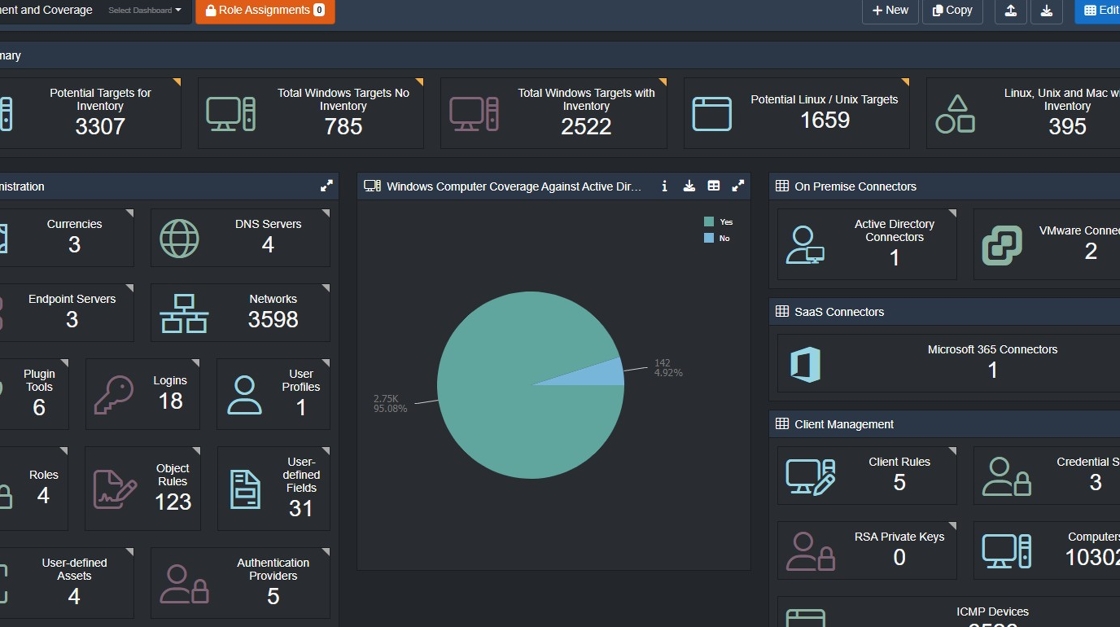
2. Click the burger icon.

3. Click "Data Groups".

4. Click "Dynamic Groups".

5. Click "+ New".

6. Click the "Name" field.

7. Type in your dynamic group name, i.e. "Windows Systems with Low Disk Space".

8. Click the "Description".

9. Type "A group of Windows Computers that have less than 20% free hard disk space remaining".

10. Click "Criteria".

11. Click "Table".

12. Select "Disk Volumes" from the dropdown.

13. Click "Field".

14. Select "Percent Used - Integer".

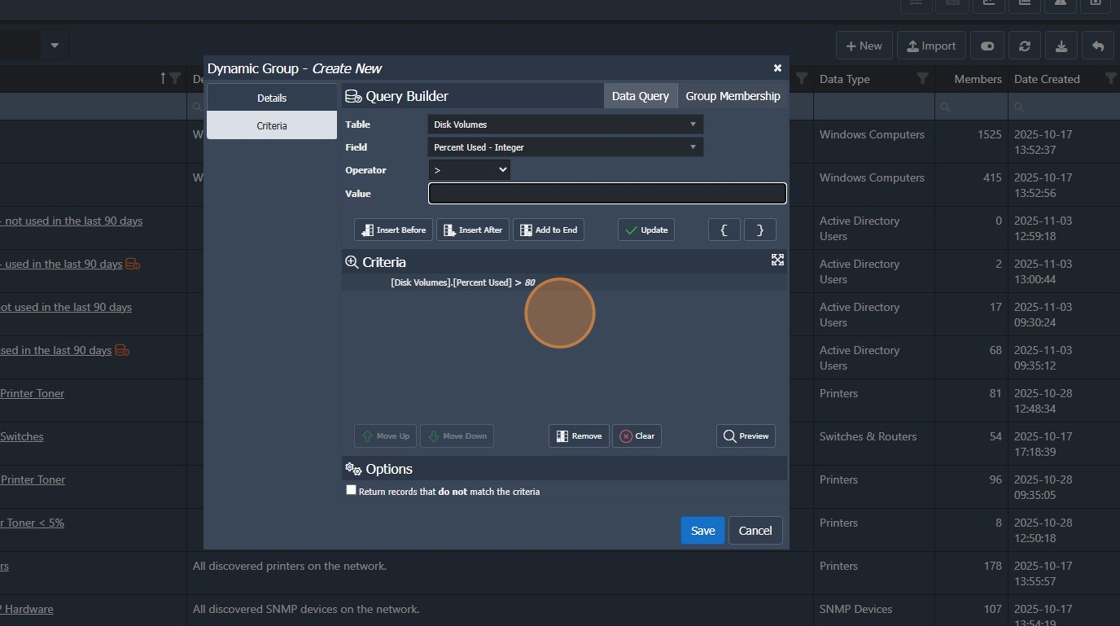
15. Select the ">" Operator.

16. Click "Value".

17. Type "80"

18. Click "Add to End".

19. Your criteria should be updated as below.
20. Click "Preview".

21. Verify your results.

22. Click "Close".

23. Click "Save"

The Dynamic Group is now created, to view all of these devices you select the name of the Dynamic group and Certero will drill down to show all the devices that have less than 20% disk space remaining.
This dynamic Group can be further enhanced by reporting only on Servers through the use of an additional criteria:
