How do i enable the web server port on a Certero Client? | v8+


Within the Certero Management Platform is the ability to define a Web Server port for the Certero clients that are deployed across your estate. This is used for several different tasks across the platform.
Defining the Web Server port within the CMP
By default, the Web Server port will be disabled within the platform meaning that any of the features outlined within this article will not function. For reference, setting the port to 0 will disable the Web Services for the clients.
In order to enable/alter this port:
1. Navigate to your Certero platform.
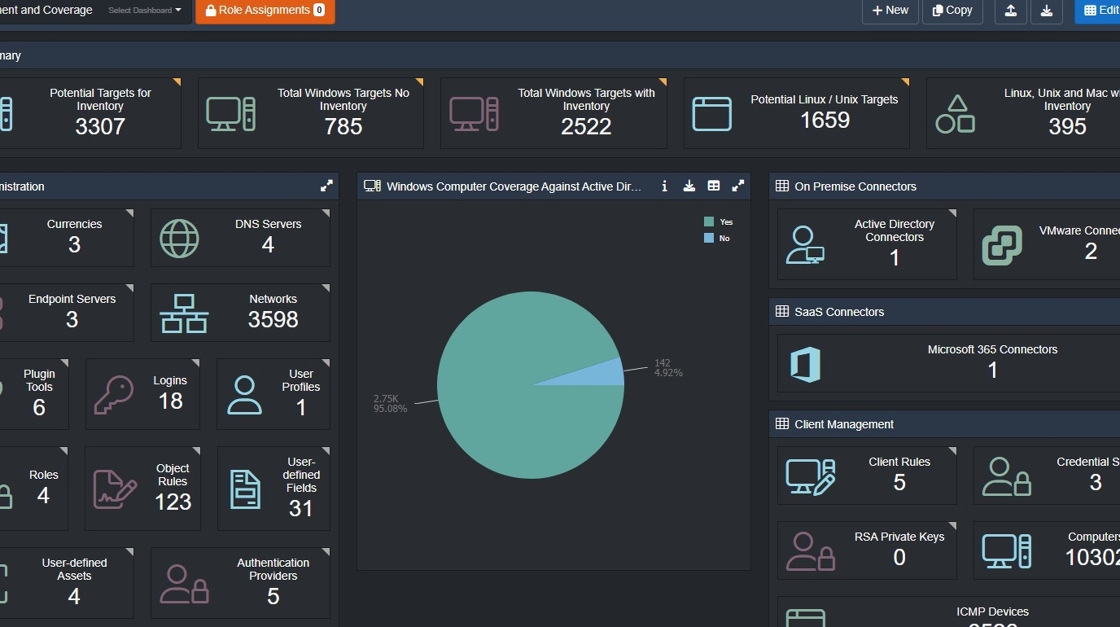
2. Click the burger icon.

3. Click "Global Settings".

4. Click "Other Options.

5. Under the Client Agent heading, you will see two options, these being Web Server HTTP port (0 to disable) & Web Server HTTPS port (0 to disable) . You can set the port to be used against each protocol within the corresponding boxes. This can be any port, however you should use a port that is not used by any other product within your environment in order to avoid clashes (for example DO NOT USE 80, 443 or 8080 etc. ).
The port selected for use must be open and unblocked between your Endpoint Servers and Client Agents.

6. Click "Save" to commit your changes.

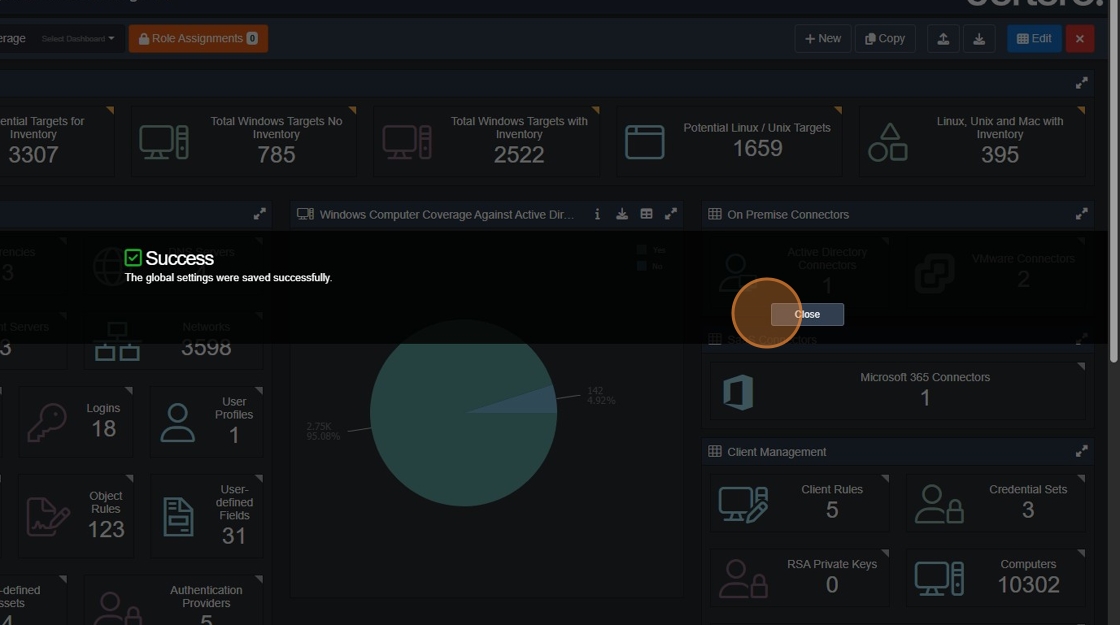
7. Click "Close"
What is this Web Server Port used for?
These ports are used for several different functions within the Certero Management Platform. The main one being the facilitation of the Plugin Tools. When a Plugin Tool is used against an asset, the CMP will use the port defined within this setting to action to request to the Certero client which will then initiate the action.
This port is also used within the App-Centre. It allows App-Centre to acquire the Computer name and the Logged-on user name, this information is then presented within the browser page for App-Centre. App-Centre will also use this connection to facilitate the instant installation/removal of software.