How do I create a Configuration rule | v8+


This article provides information on how to create a Certero Client update Configuration. This can be helpful for customers who would like to trial the updated Certero Client on test systems after applying an upgrade to the Certero Platform or they wish to control what functionality client agents provide.
In this example, we will configure a configuration rule to enable module functionality against the client agent for all Windows Workstations.
1. Navigate to your Certero platform.
2. Click the burger icon.

3. Click "Computer Systems".

4. Click "Configurations".

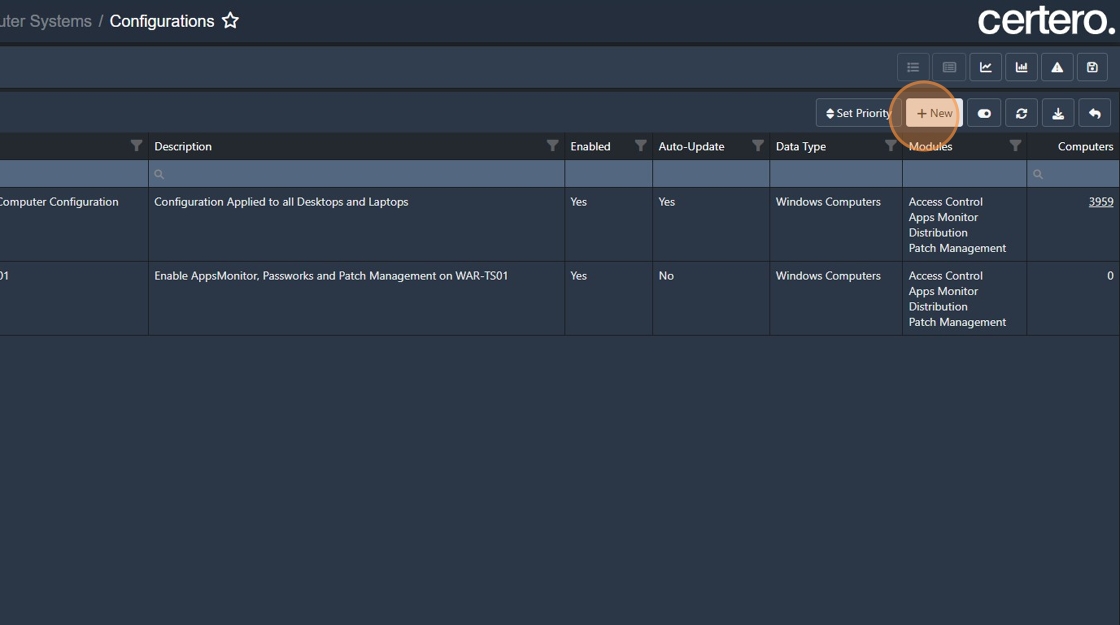
5. Click + New.
6. Click the "Name" field.

7. Type "Windows Workstations".
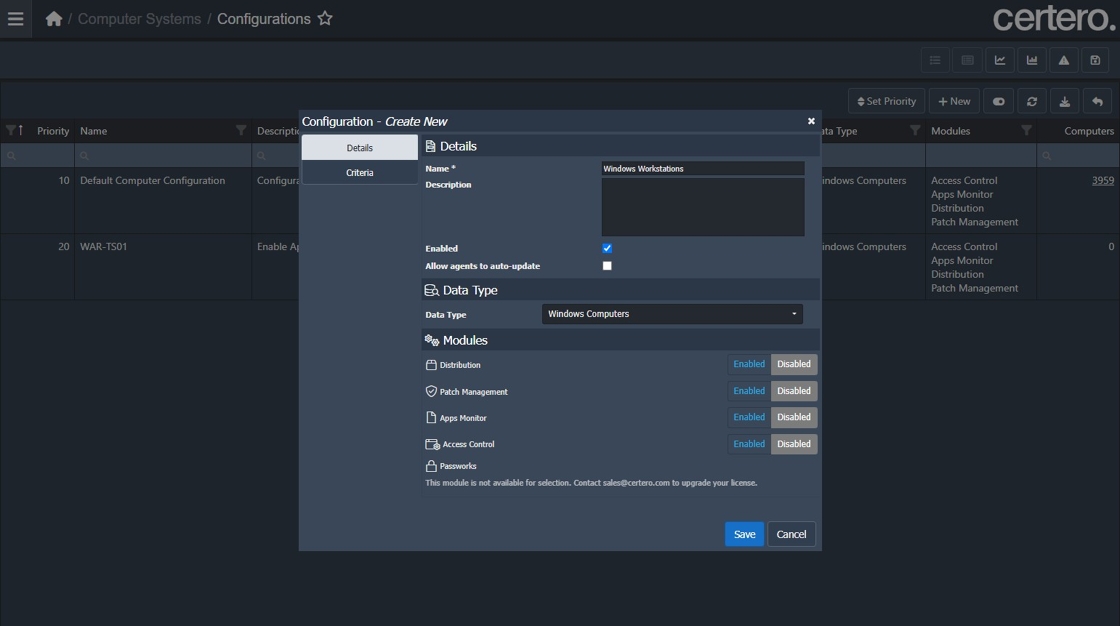
8. Click this checkbox to allow agents to auto update when a new agent version is published.

9. Click "Enabled" against Apps Monitor (or any licensed module).
If your organisation is not licensed for a particular module, that option will be greyed out and you will not be able to select it. By default, inventory will be performed on all computers with the Certero client installed.

10. Click "Criteria".

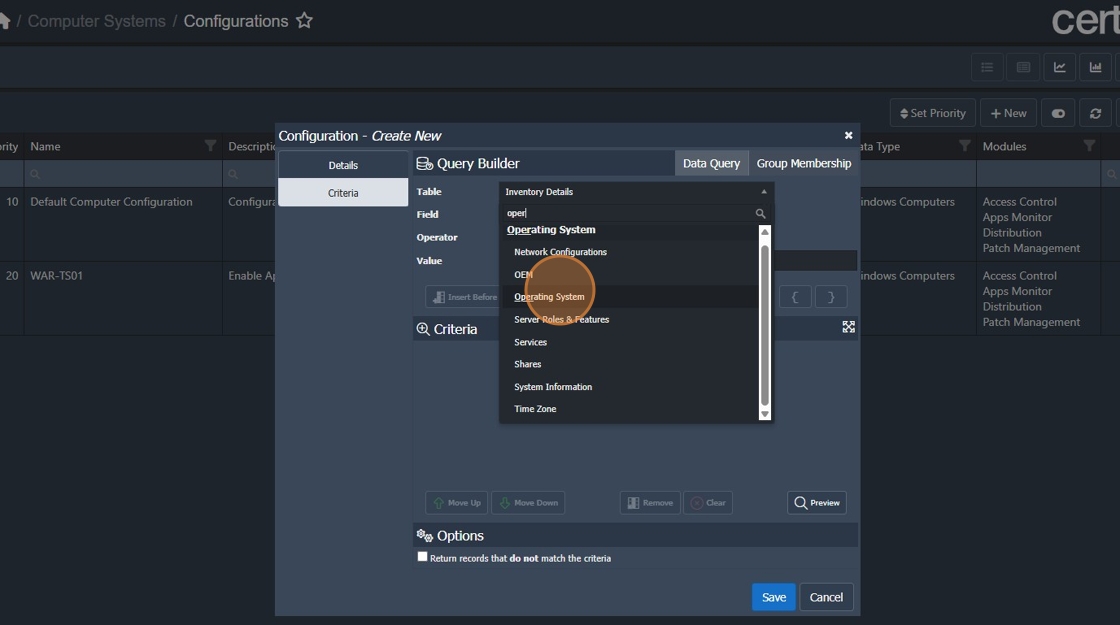
11. Click "Table".

12. Type "oper".

13. Click "Operating System > Operating System".
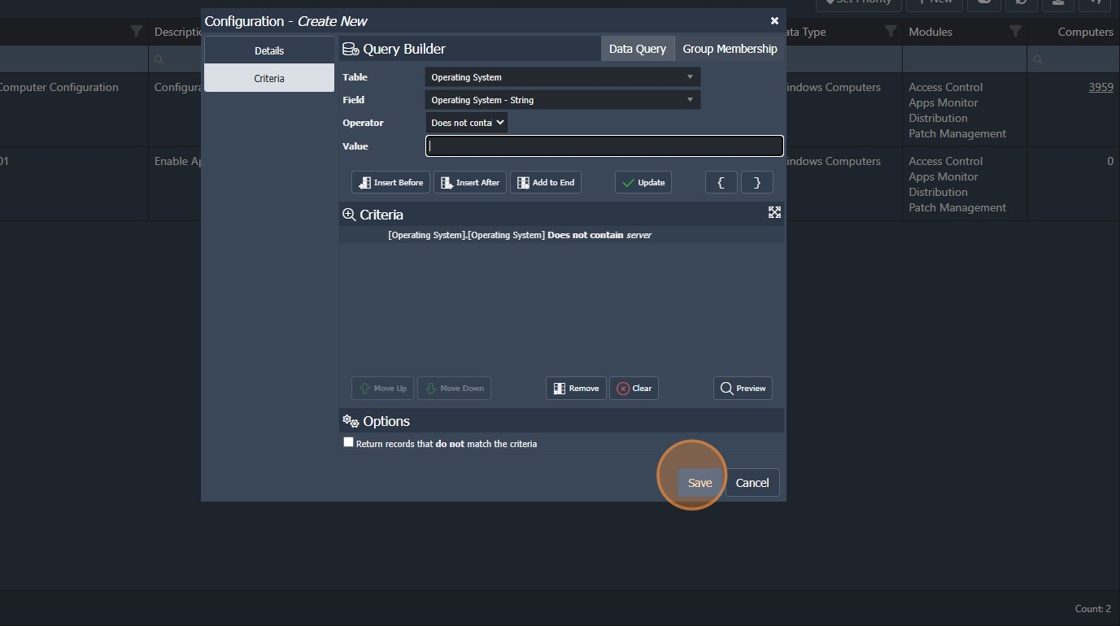
14. Select the Operator "Does not contain".

15. Click "Value".

16. Type "server"

17. Click "Add to End"

18. Click "Save" to commit your changes.
Certero will schedule and then execute the Configuration and upgrade the Clients based on your criteria.