How to create a Governance Filter | v8+


Governance Policies use Filters to define the reporting logic. Filters are constructed using a powerful but intuitive, graphical Filter Builder. Filters are savable and reusable between policies. A policy has a Policy Filter where you define what success looks like and an optional Data Filter where you can reduce the pool of items being evaluated; for example, a policy which checks that users or computers comply with certain conditions, and where those conditions are country-specific, could have a Data Filter which scopes the policy to a single country.
This article details how you can setup Filters to quickly identify Windows Workstations and Windows Servers to be used for Governance Policies.
How to setup a filter for Windows Workstations
1. Navigate to your Certero platform.

2. Click the burger icon.

3. Click "Governance"

4. Click "Filters"

5. Click "New Filter"

6. Click "Microsoft Windows"

7. Click the "Name" field.

8. Type "Windows Workstations"
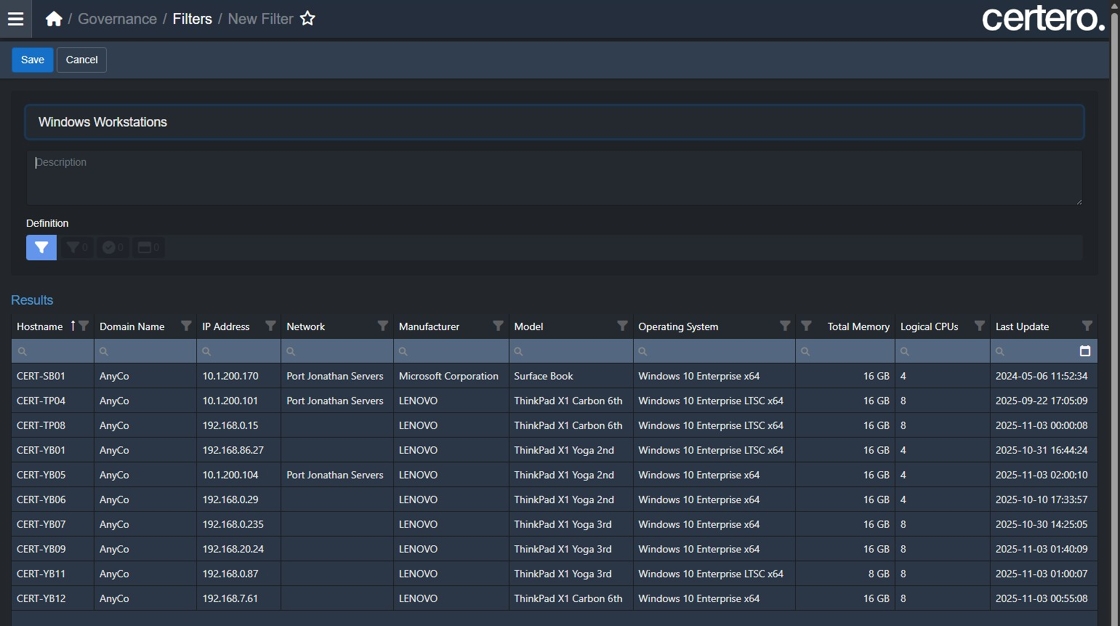
9. Click the "Description" field.

10. Type "A filter to identify Windows Workstations."

11. Click here.

12. Click here.

13. Click here.

14. Click "Computer Name"

15. Type "operating"

16. Click "Operating System > Operating System"

17. Click Operator

18. Select "Does not contain"
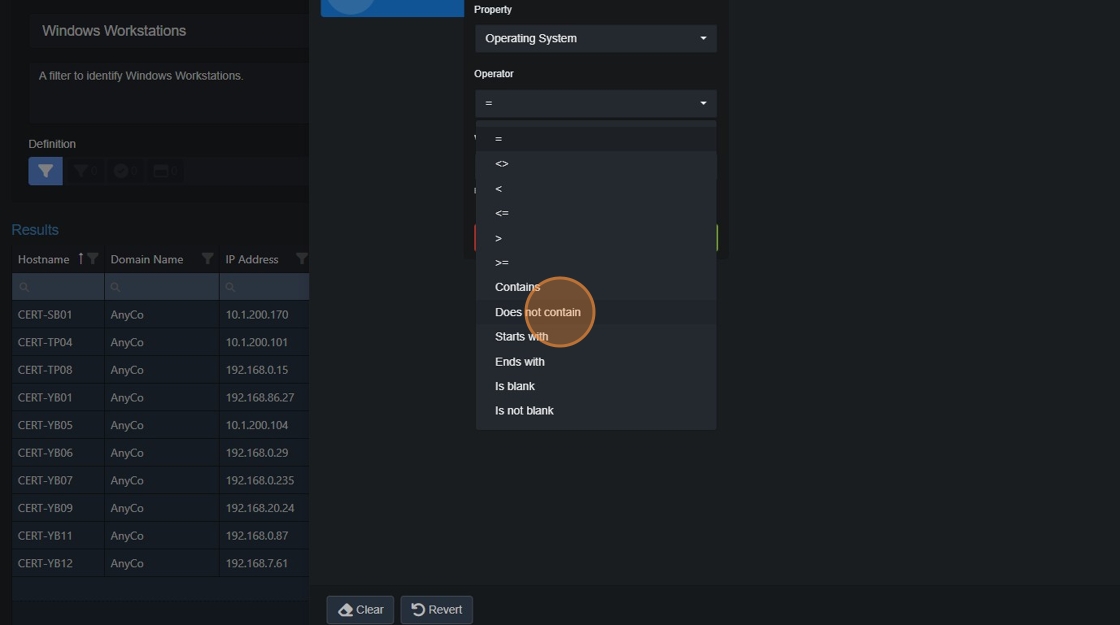
19. Click the "Value" field.

20. For "Value" type "server"
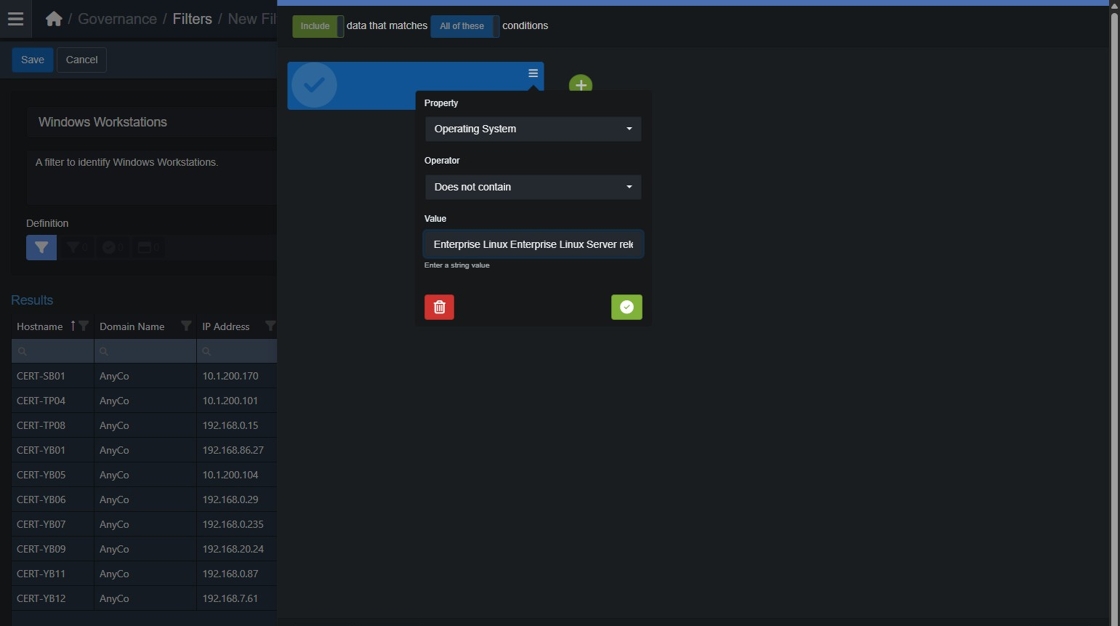
21. Click here.

22. Criteria should be displayed as below.
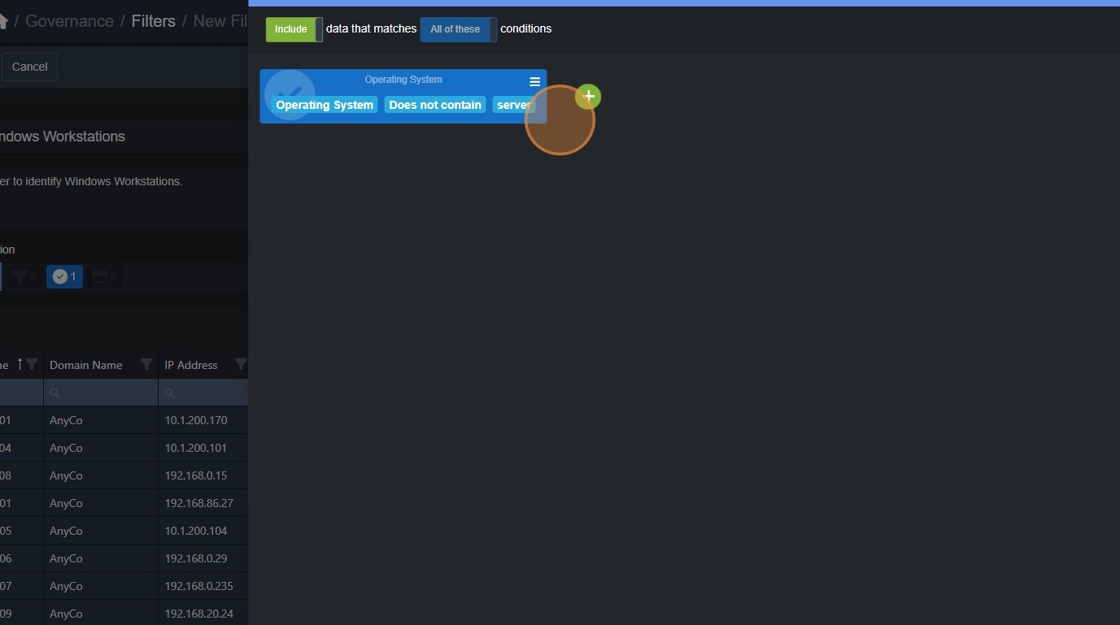
23. Click "Close"

24. Click "Save" to commit your changes.

How to setup a filter for Windows Servers
As you have created a filter for Windows Workstations already, we can re-use the filter and update the criteria to identify Servers.
1. Open up the "Windows Workstations" filter we created, click "Copy"

2. Double-click the "Name" field.

3. Type "Windows Servers"
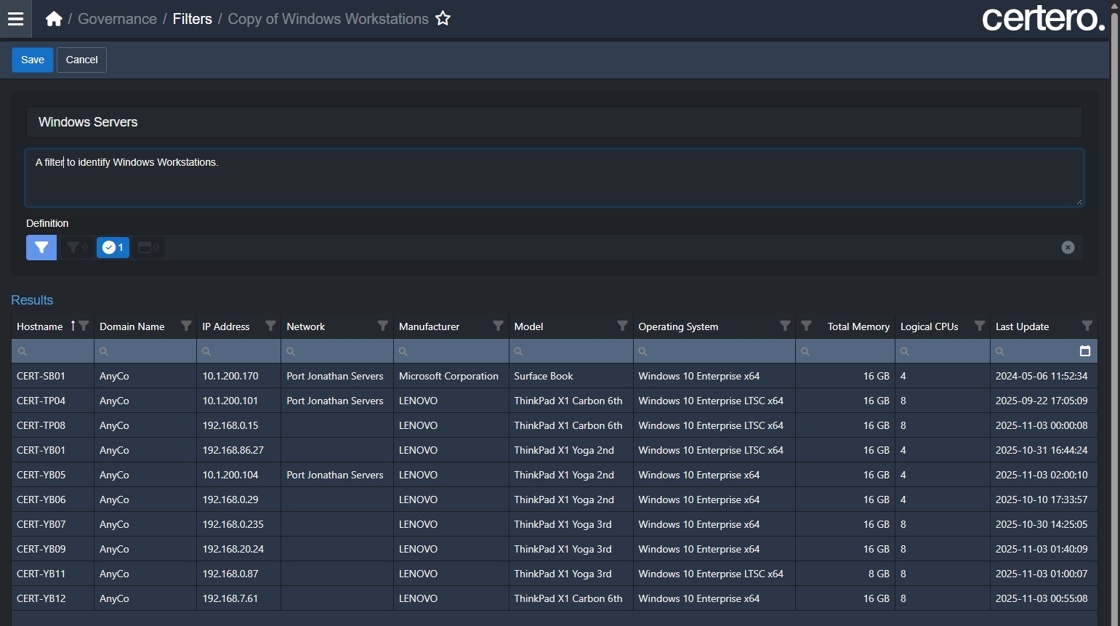
4. Double-click the "Description" field.

5. Type "A filter to identify Windows Servers"

6. Click Definition Filter.

7. Click the burger icon to expose the criteria.

8. Under Operator, Click "Contains"
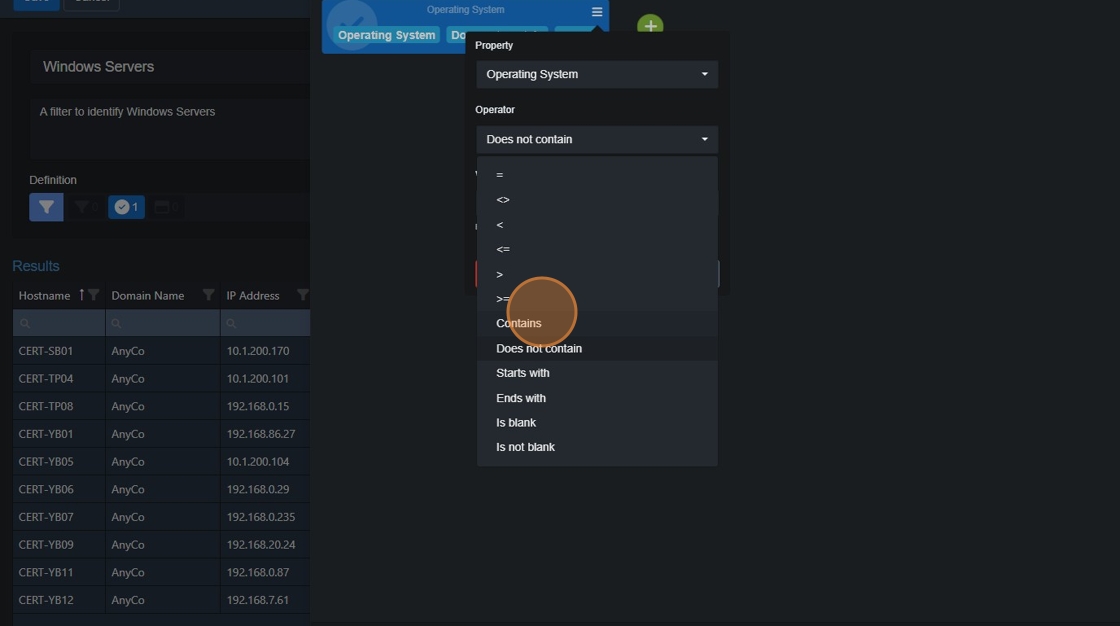
9. Click here.

10. Click "Close".

11. Click "Save" to commit your changes

12. Your created filter should be displayed for review.
