Utilising Location Rules | v8+


One of the new features that has been introduced into the Certero Management Platform (CMP) is the ability to define machines and/or users by their physical location.
This is a very useful feature for administrators as it gives them a complete overview of their estate's various locations. These can be created against all manner of inventoried devices within Certero.
The first step in setting up these Location Rules is to designate some locations. These are typically going to be the locations of offices and/or premises that contain the inventoried devices. However these can be completely tailored to suit a business' needs. They can be, for example done at a country level.
Creating new Locations
1. Navigate to your Certero Platform.

2. Click the burger icon.

3. Click "Global Settings".

4. Click "Manage Locations"

5. Right-click "World"
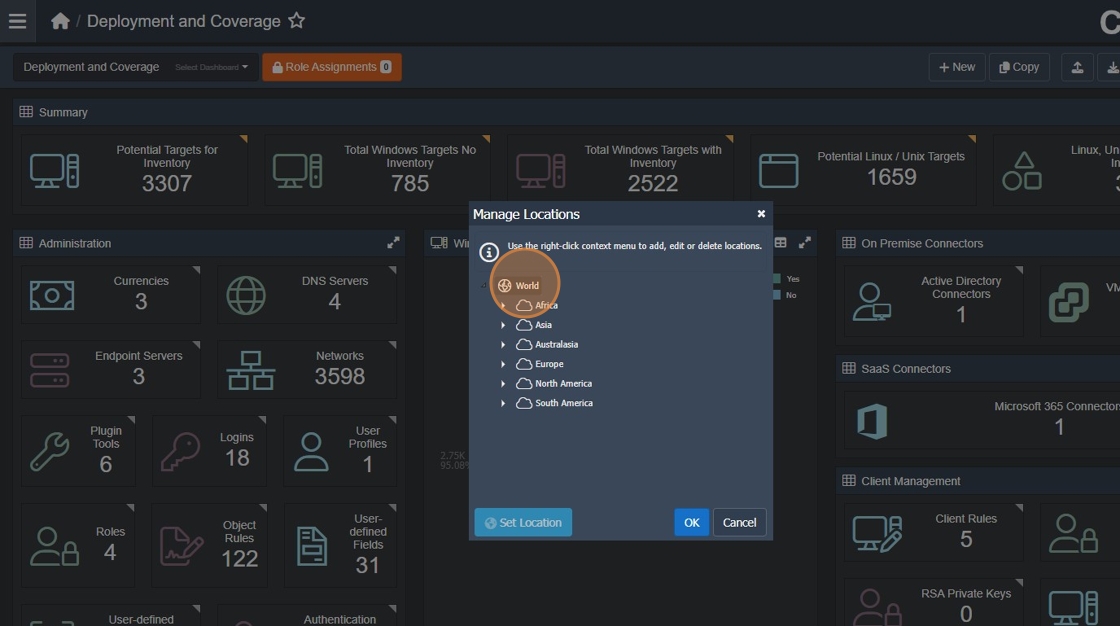
6. Click "Add New"

7. Type a name for your location and press ENTER.

8. Click your created entry.

9. Click "Set Location" to set a map coordinate.

10. Click "Set location coordinates"

11. Click "Set location coordinates"
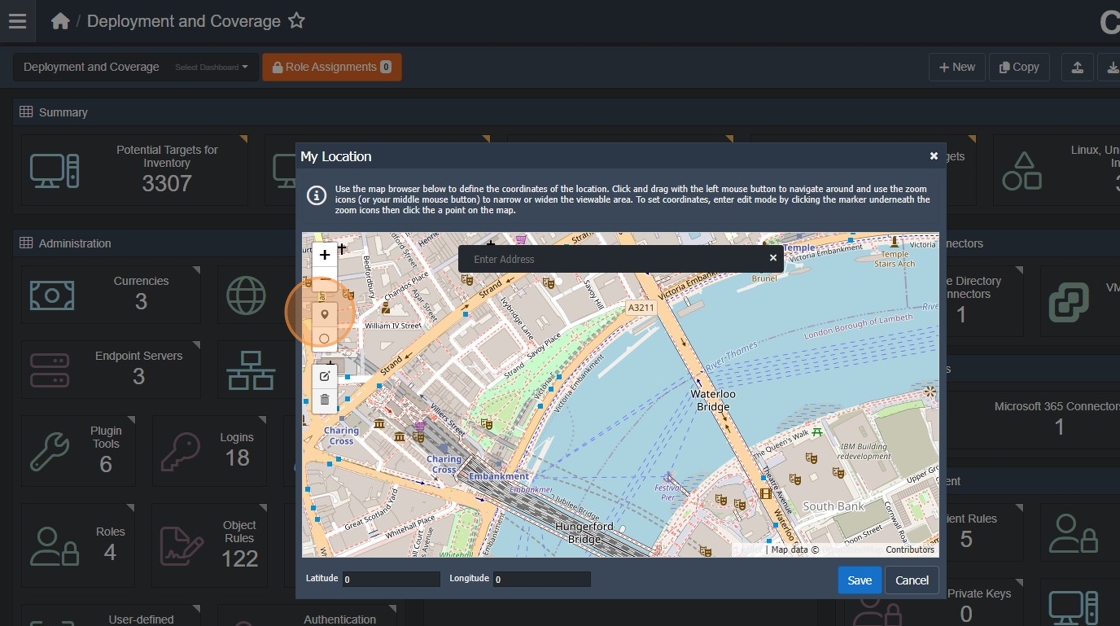
12. Drag and drop the pin from the left menu onto the required location. The longitude and latitude will automatically be filled in on the bottom of the window. An example of this can be seen in the next step.

13. Click "Save"

14. Click "OK" to commit your changes.

Defining the Location rules
Once all the locations have been defined, the next step is to create the Location Rules. This is done by using the familiar queries. Within the Details tab, you can specify the Data Type of the Location Rule as well as the Target Location (your designated locations).
Simply define a query that will select all the machines within a specific location, for example if machines are utilizing a naming convention that specifies their location.
15. Click here.

16. Click "Administration"

17. Click "Object Rules"

18. Click "New"

19. Click "Name".

20. Type a name for your Object Rule.

21. Click "Description"

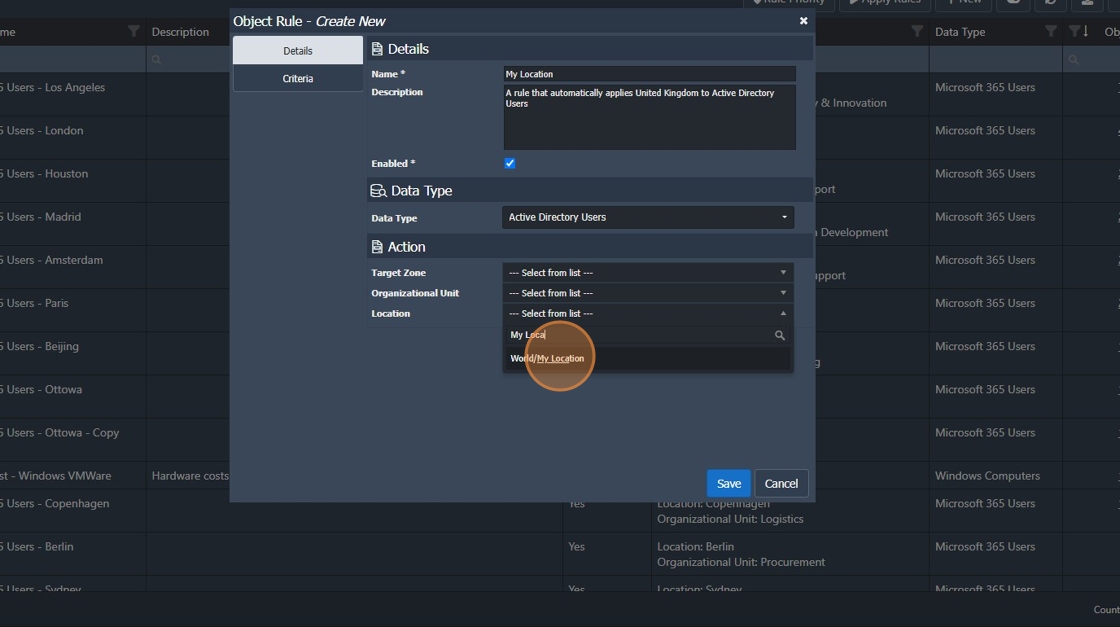
22. Type "A rule that automatically applies United Kingdom to Active Directory Users"
Its good practice to be clear and concise in your description to allow other Certero administrators to understand what this rule provides.

23. Select your chosen data type.

24. Click "Active Directory Users" for this example.

25. Under "Action" select your created location.

26. Click your created location.
27. Click "Criteria"

28. Click the Table field to expose the drop down

29. Click "Active Directory > User Details"

30. Click "Field"

31. Click "Country - String" as this is how we are determining our users location.

32. Click "Value" and enter in your location term.

33. Type "United Kingdom"

34. Click "Add to End"

35. Click "Save" to commit your changes.

Adding a location map to a dashboard
The last stage of this process is to include the location map in a dashboard.
36. Navigate to your desired Certero Dashboard. Click "Edit"

37. Click + (Add new item).
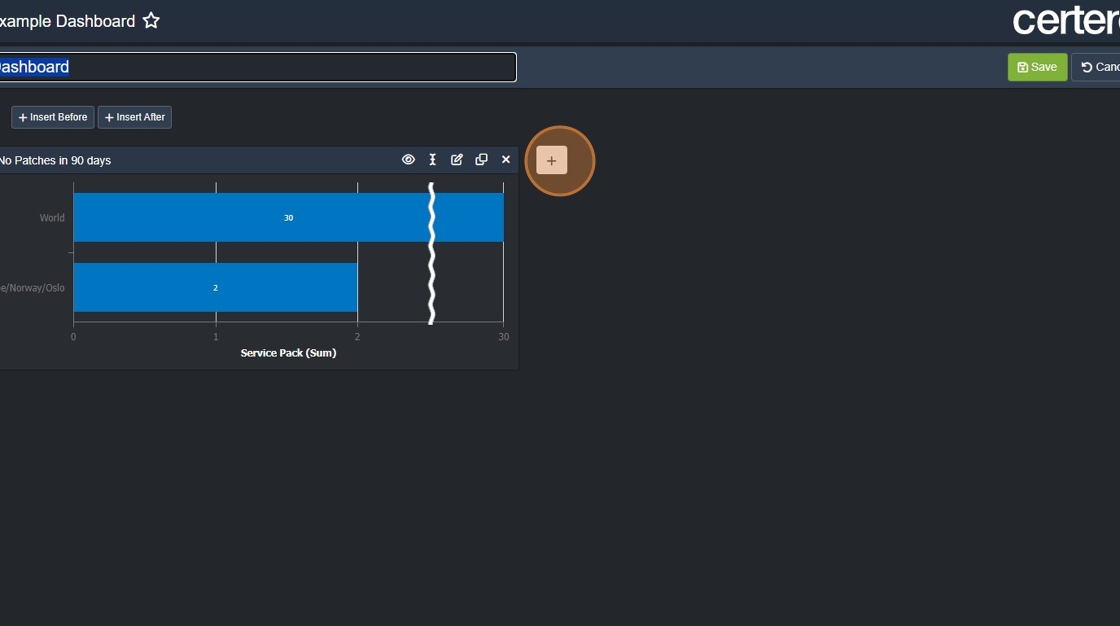
38. Click "Location Map"

39. Chose a name for your location map.

40. Click "OK"

41. Click "Save" to commit your changes.
